

- Session 1: Types of Stories
- Session 2: Life Themes
- Session 3: In the Classroom
Before You Create an Orientation
Before creating the orientation series, confirm:- The community or participant group the orientation will serve
- The approximate number of participants
- The person who will serve as the Orientation Facilitator
- That the Orientation Facilitator has been added as a team member in Settings
- Whether a GrandPal Team Leader will help support the series
- The venue name and address
- Three proposed session dates and start times
- Approximately 1½ to 2 hours for each session
- Venue accessibility and parking or transportation considerations
- Reliable internet access
- A screen or projector and adequate speakers
- Tables and seating that support small-group discussion
- Who will prepare the printed materials and supplies
- Whether refreshments will be provided
Add a New Orientation
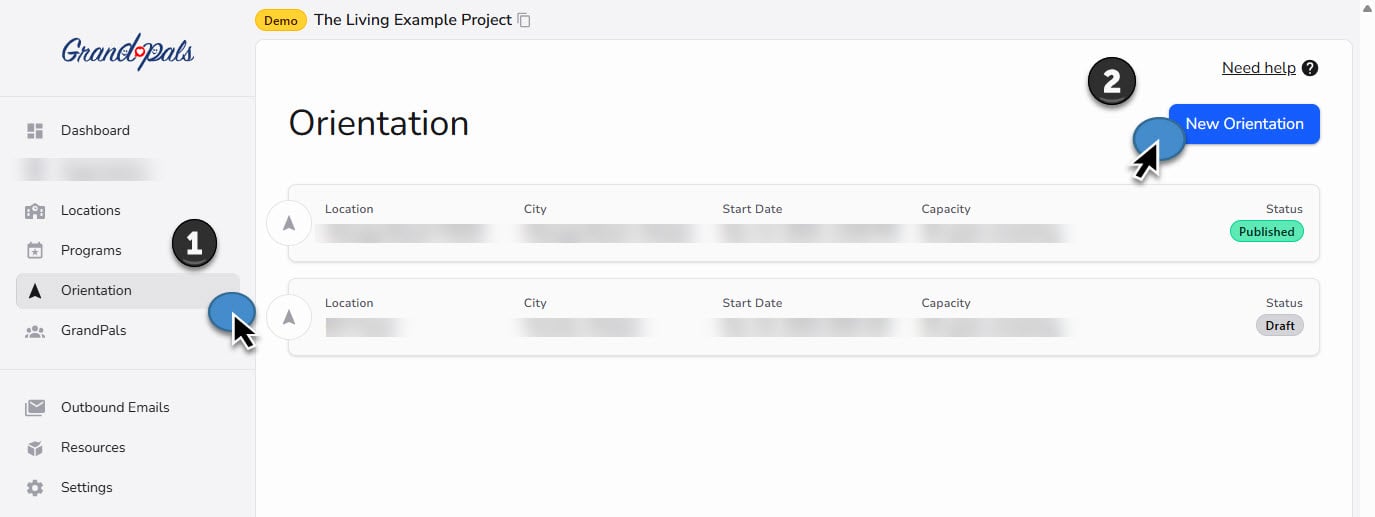
- Click Orientation in the left-hand navigation
- Click New Orientation in the top right
- Start typing the address or place name of the orientation venue
- Select the correct location
- Confirm the location name and address
- Select the proposed start date and time
- Review the three-session schedule generated by the platform
- Use Edit to change a session’s:
- Date
- Start time
- Duration
- Enter the maximum number of participants who can attend
- Click Create Orientation Sessions
Orientations are created in an initial draft state. GrandPals cannot be added until the orientation has been published.
Review the Draft Orientation
Before publishing, review the complete orientation series. Confirm:- The venue name and address
- The date of each session
- The start time of each session
- The duration of each session
- The participant capacity
- The orientation name
- The assigned Orientation Facilitator
- The GrandPal Team Leader, when applicable
- Known holidays or community scheduling conflicts
- Accessibility and audiovisual requirements
Participant Capacity
The capacity is the maximum number of GrandPals who can participate in the orientation. Once the orientation reaches its stated capacity, additional GrandPals cannot be added. Before publishing, make sure the capacity reflects:- The size of the venue
- The number of tables and chairs available
- The facilitator’s ability to support meaningful discussion
- Any accessibility or spacing requirements
Give the Orientation a Clear Name
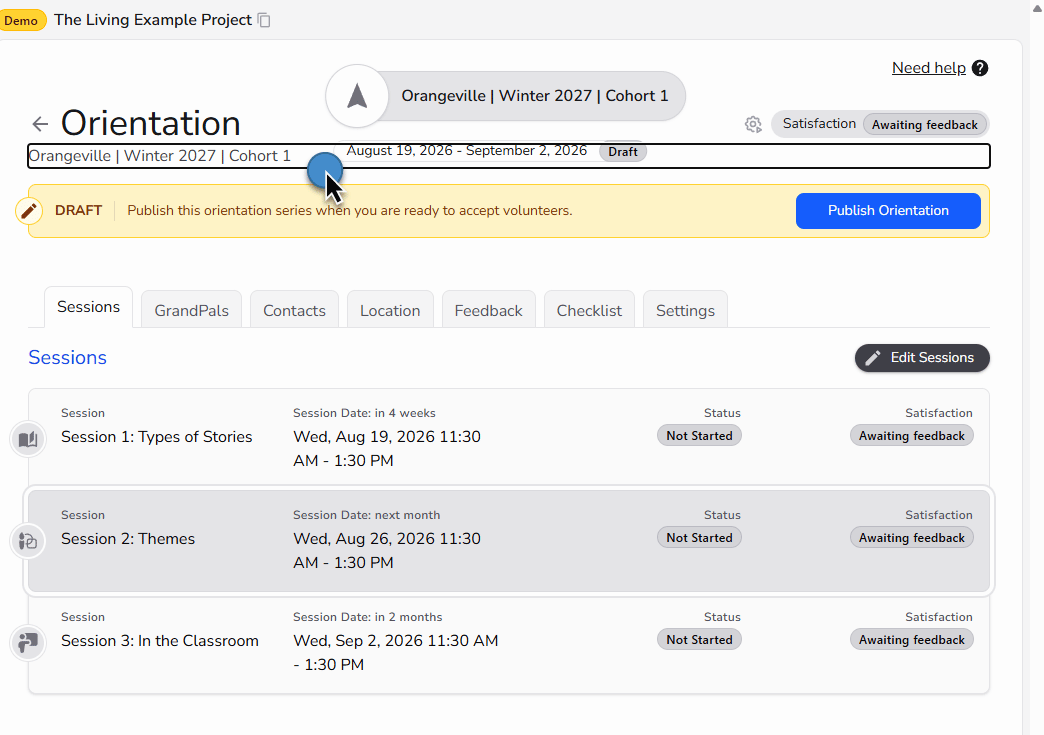
- The community or venue
- The season
- The year
- A cohort number
Orangeville | Winter 2027 | Cohort 1Review and update the orientation name before publishing.
Add Contacts to an Orientation
An orientation can have two types of contacts assigned:- Orientation Facilitator
- GrandPal Team Leader
Assign an Orientation Facilitator
The Orientation Facilitator is responsible for preparing for and leading the complete three-session orientation series. The facilitator may be:- The Program Coordinator
- A volunteer
- An experienced GrandPal
- Another person approved by your organization
- Review the orientation checklist
- Preview the guided session videos
- Prepare the venue and materials
- Lead the activities and discussions
- Manage the pacing of each session
- Support participants throughout the series
Assign an Orientation Facilitator
Assign an Orientation Facilitator
- Open Settings
- Select Team
- Select Manage your team
- Add the person as a team member
- Save the changes
- Click Orientation in the left-hand navigation
- Select the orientation you want to manage
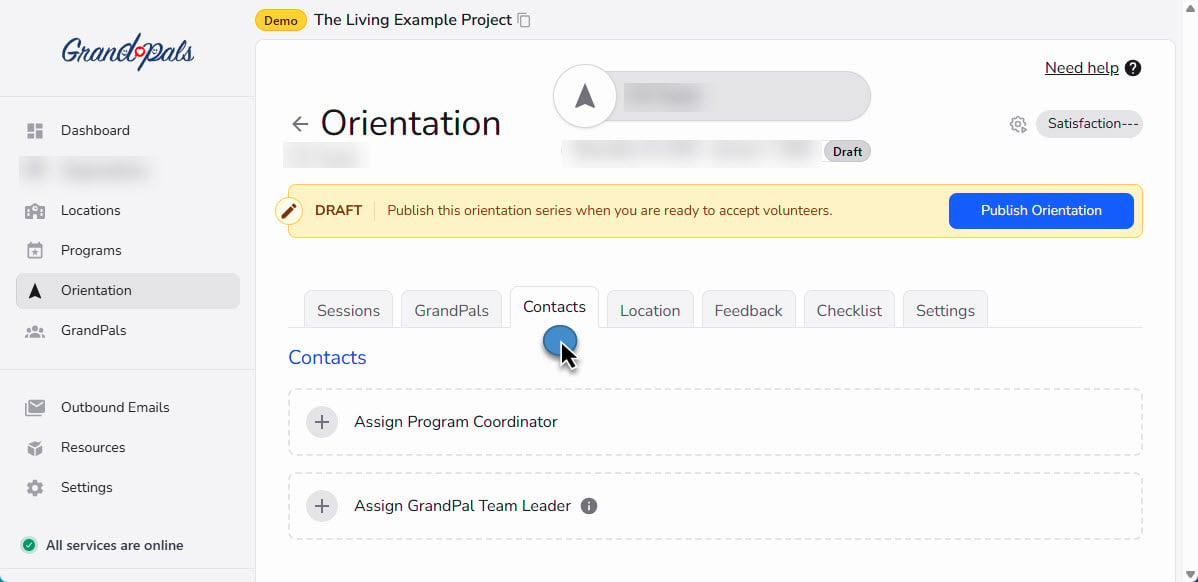
- Click Contacts
- Click Assign Orientation Facilitator
- Search for and select the person
- Click Assign
- Click Save
Assign a GrandPal Team Leader
The GrandPal Team Leader may help the Orientation Facilitator:- Welcome participants
- Support small-group discussions and activities
- Answer questions
- Help participants locate materials
- Create a comfortable and encouraging environment
- Notice when someone may need additional support
Assign a GrandPal Team Leader
Assign a GrandPal Team Leader
- Click GrandPals in the main navigation
- Click New GrandPal
- Complete the GrandPal profile
- Click Save
- Click Orientation in the left-hand navigation
- Select the orientation you want to manage
- Click Contacts
- Click Assign GrandPal Team Leader
- Search for and select the person
- Click Assign
- Click Save
Where Orientation Contacts Come From
View the Team settings guide
Review the Orientation Checklist
Before publishing, open the Checklist tab inside the orientation series. Review the preparation tasks and confirm who will complete each one. Preparation may include:- Confirming the venue
- Testing the internet connection
- Testing the video and audio equipment
- Arranging tables and chairs
- Preparing name tags
- Printing participant materials
- Preparing pens, sticky notes, and other supplies
- Arranging refreshments, when applicable
- Previewing the guided session videos
Publish an Orientation
- The orientation name is clear
- The venue and address are correct
- All three dates are correct
- All start times are correct
- Each session has an appropriate duration
- The participant capacity is correct
- The Orientation Facilitator is assigned
- The Orientation Facilitator is available for all three sessions
- The GrandPal Team Leader is assigned, when applicable
- The venue is booked
- Accessibility requirements have been addressed
- The checklist has been reviewed
- All information is ready to be shared with participants
- Open the orientation series
- Review the complete schedule and setup details
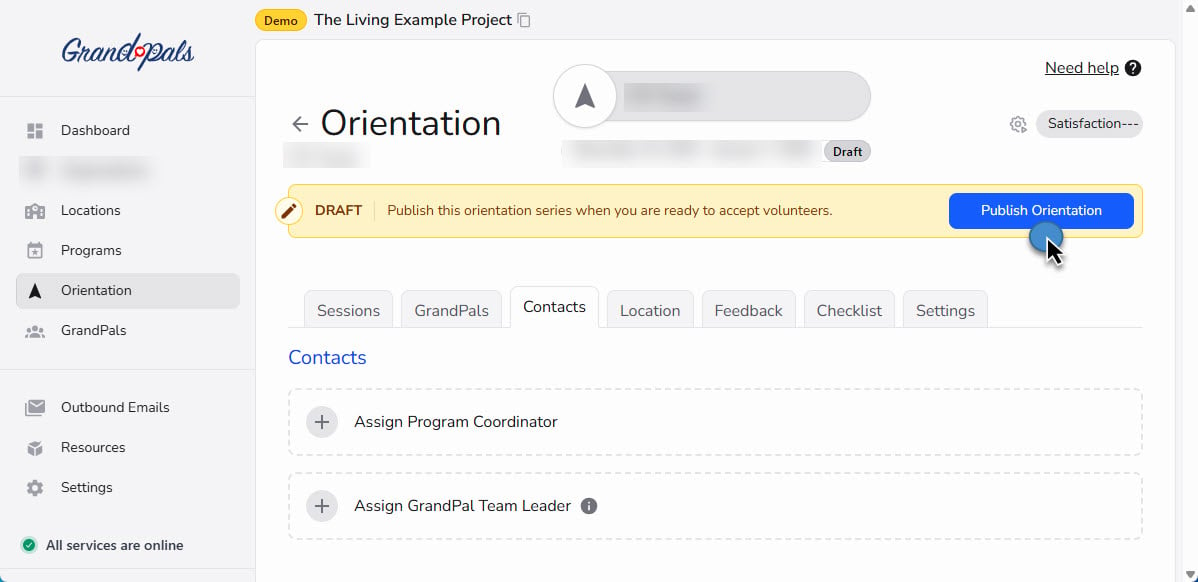
- Click Publish
- Confirm that the orientation now appears as published
- The orientation becomes live in the platform
- People connected with the orientation can begin receiving orientation-related notifications
- GrandPals can be added to the cohort
- The published orientation schedule cannot be changed
An orientation series cannot be deleted once it has begun.
Add a GrandPal to an Orientation Cohort
A person must already exist as a GrandPal record before they can be added to an orientation. The orientation must also be published.- Click Orientation in the left-hand navigation
- Select the orientation you want to manage
- Click the GrandPals tab
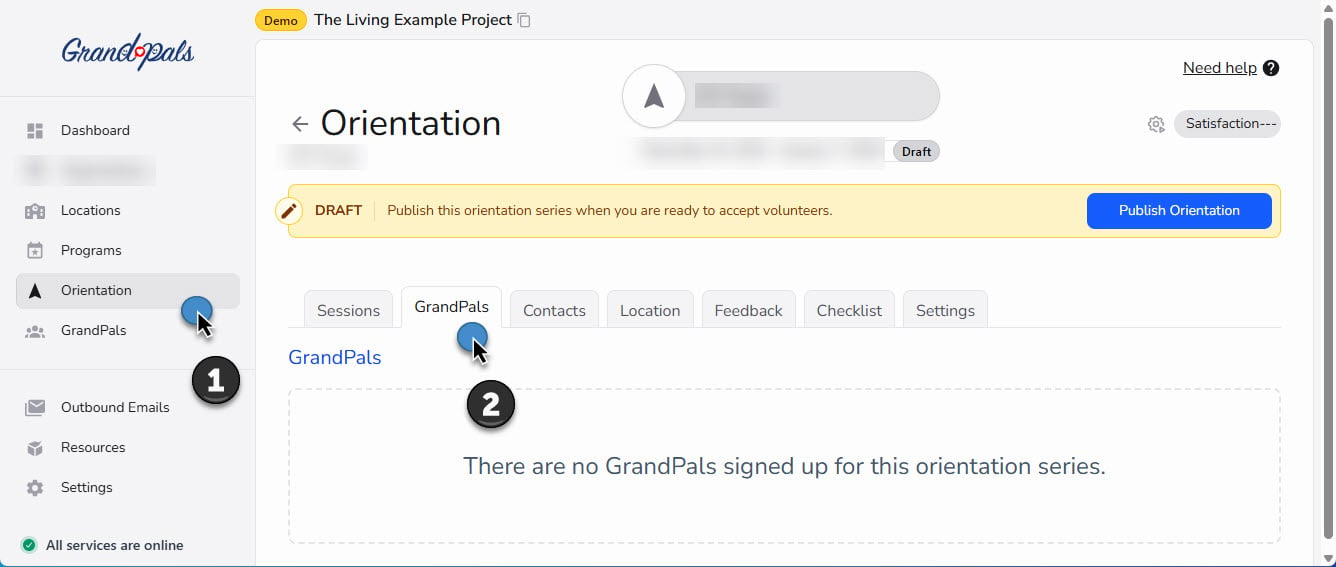
- Click Add GrandPals
- Search for the GrandPal’s name
- Select the name or names you want to add
- Click the selected name or names to add them to the orientation
- They count toward the orientation’s participant capacity
- An email notification is automatically sent to them
- The email can be reviewed under Outbound Emails in the left-hand navigation
Additional GrandPals cannot be added after the orientation reaches its participant capacity.
Remove a GrandPal from an Orientation
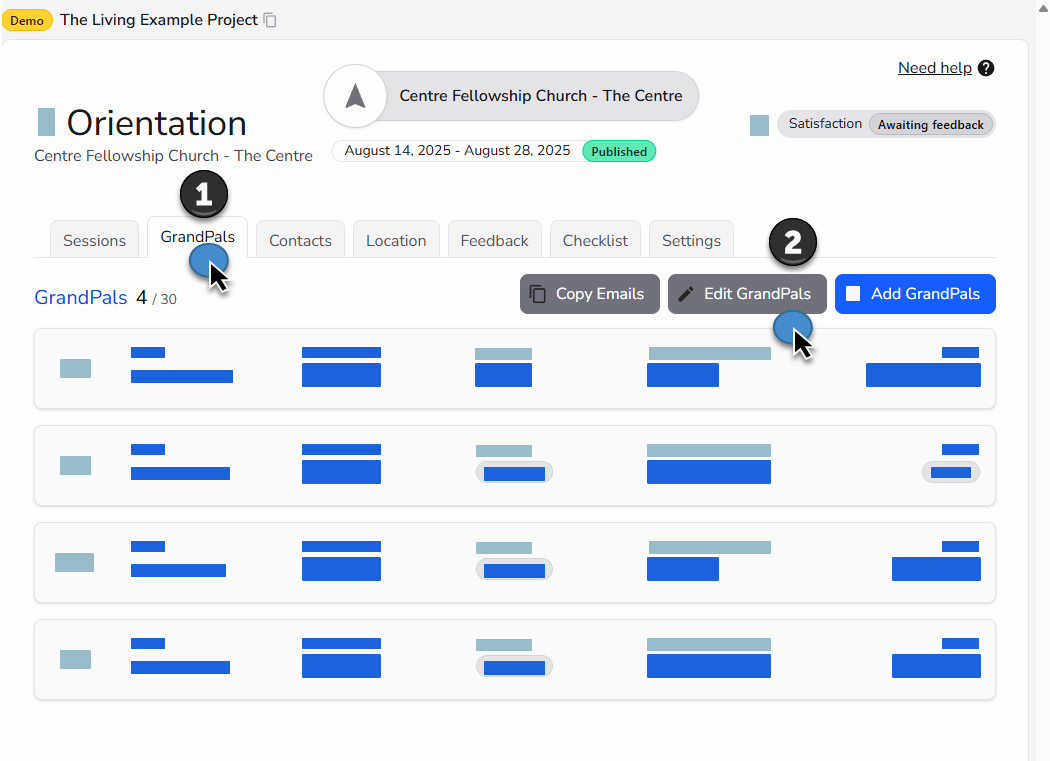
- Click Orientation in the left-hand navigation
- Select the active orientation
- Click the GrandPals tab
- Click Edit GrandPals
- Find the person you want to remove
- Click Remove from Orientation
Leading an Orientation
The platform provides the structure, videos, chapters, pause points, activities, and preparation checklist needed to lead each session.Step 1: Open the Orientation Series
- Click Orientation in the left-hand navigation
- Select the relevant orientation series
Step 2: Review the Checklist
- Click the Checklist tab
- Review all preparation tasks
- Confirm that the required materials and equipment are ready
Step 3: Open the Session
From within the orientation series, select:- Session 1
- Session 2
- Session 3
Step 4: Play the Guided Video
Inside the session:- Click Play to begin
- Use the available chapters to navigate the session
- Switch to Full Screen when appropriate
Step 5: Pause for Activities
The guided videos include built-in pauses for participant activities, reflection, and discussion. When the video pauses:- Lead the activity offline
- Allow participants to discuss or complete the activity
- Keep track of the available time
- Click Resume or Play when the group is ready to continue
Step 6: Close the Session
When the video reaches the end:- Confirm that the session activities are complete
- Answer any final questions
- Remind participants of the next orientation date
- Provide any follow-up information identified in the platform
- Return to the orientation series overview
Track Attendance and Completion
The platform does not currently record attendance or orientation completion. The Program Coordinator or Orientation Facilitator should use a separate attendance list or organizational record to track:- Attendance at Session 1
- Attendance at Session 2
- Attendance at Session 3
- Participants who completed the full orientation series
- Participants who need to make up a missed session
- Participants who withdrew
Orientation Summary
To prepare and deliver an orientation:- Plan the cohort, facilitator, venue, dates, and capacity
- Confirm that the Orientation Facilitator has been added to the organization team
- Create the draft orientation series
- Review all schedule and setup details
- Give the series a recognizable name
- Assign the Orientation Facilitator
- Assign a GrandPal Team Leader when appropriate
- Review the preparation checklist
- Publish only after all details are final
- Add participating GrandPals
- Remove participants when necessary
- Lead the three guided sessions
- Track attendance and completion outside the platform