

Add a New Program
Before creating a program, confirm that:- The school has been added as a location
- The teacher has been added as a contact at that location
- You know the approximate number of students
- You have a proposed start date and weekly meeting time
- You have considered school holidays, professional activity days, breaks, and other known conflicts
Create the Draft Program
- Navigate to Programs in the GrandPals Platform
- Click New Program in the top right
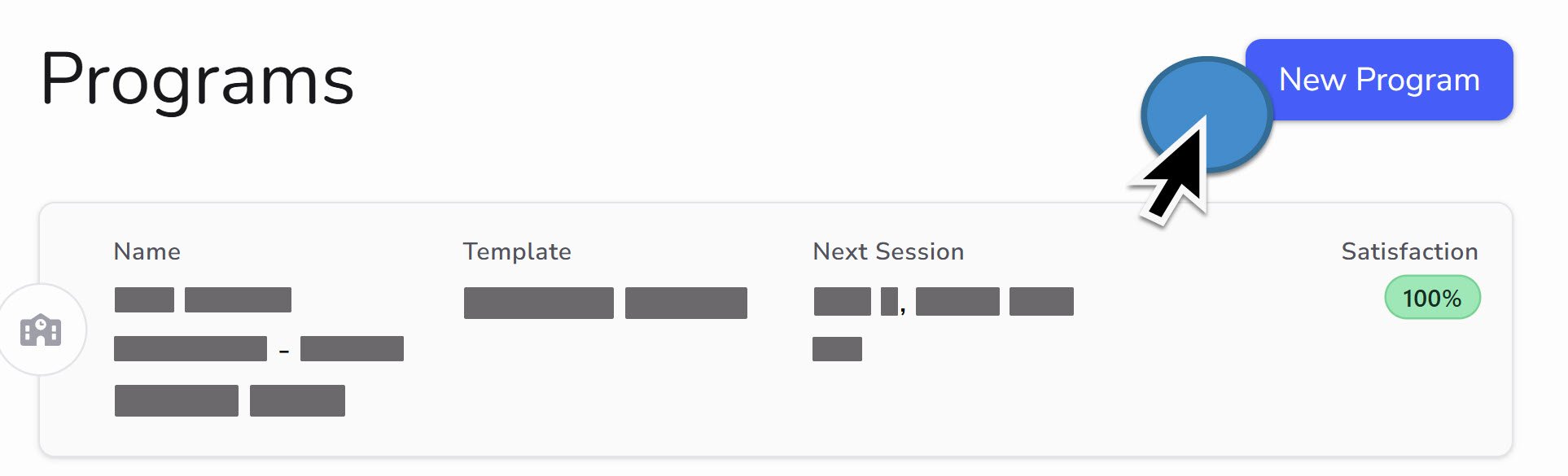
- Select a location. If you do not have any locations, add a location first.
- Select the proposed start date and time
- Review the schedule generated by the platform
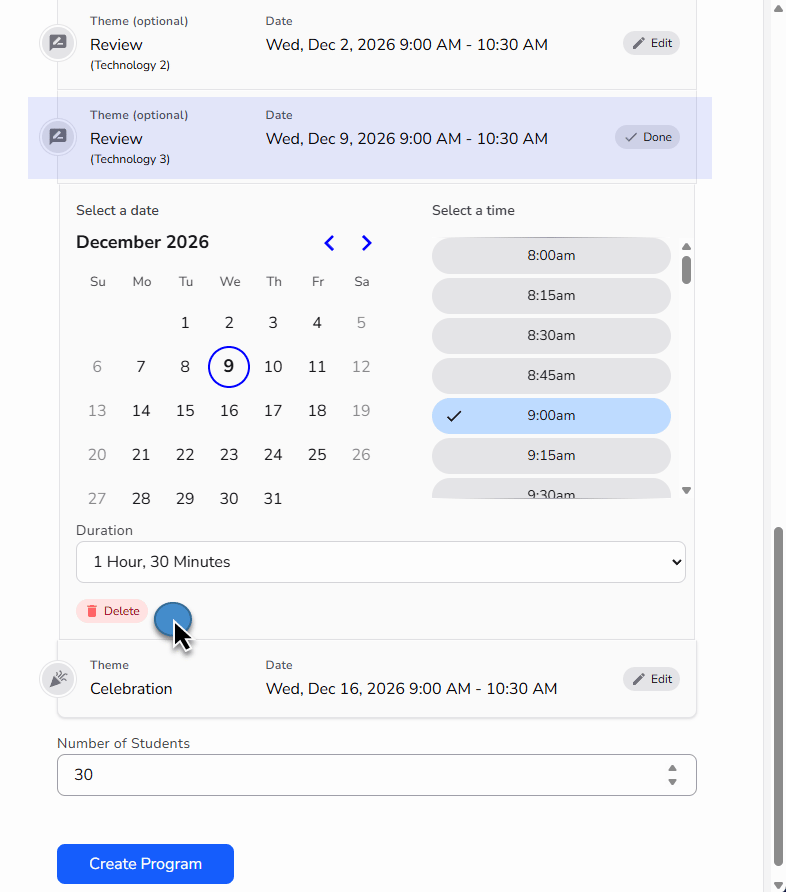
- Edit session dates, start times, and durations as needed
- Delete any Review and Revision sessions that are not needed
- Set the approximate number of students
- Click Create Program
Programs are created in an initial draft state and need to be published before GrandPals can be added. This gives the Program Coordinator and teacher time to review the proposed schedule and make any necessary changes.
Review the Proposed Schedule
The generated schedule includes:- The Meet & Greet
- The weekly themed sessions
- Three Review and Revision sessions
- The celebration
- School holidays
- Professional activity days
- School breaks
- Special events
- Other known scheduling conflicts
Recommended Session Duration
For most classroom sessions, schedule a complete block of 1 hour and 15 minutes to 1 hour and 30 minutes.
The full 90-minute format is recommended when the school schedule permits.
The 75-minute format may be more appropriate for younger students or when a shorter classroom conversation is needed.
Enter the complete session block in the platform. Do not enter only the 45 to 60 minutes spent with students.
The celebration may require additional time because its format and activities may differ from a regular classroom session.
Edit a Session
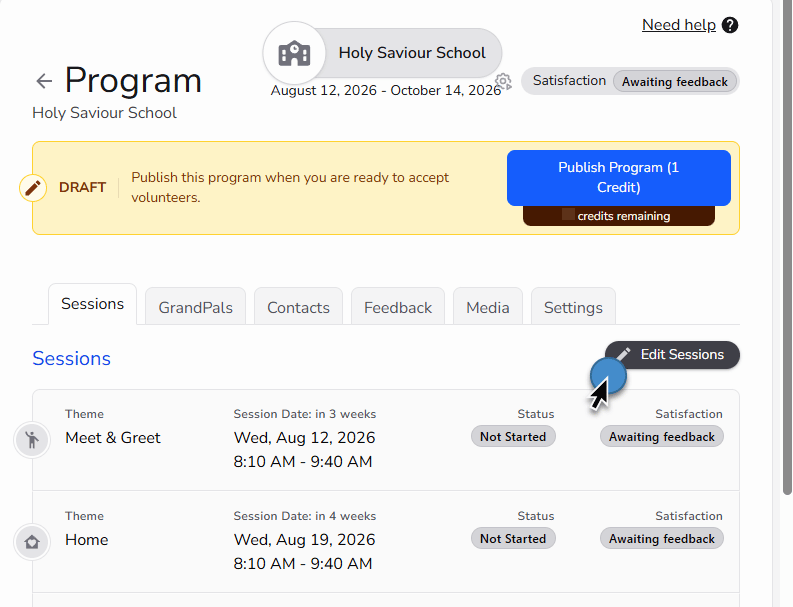
- Date
- Start time
- Duration
- Open the program
- Find the session you need to change
- Click Edit
- Update the date, start time, or duration
- Save the changes
Review and Revision Sessions
The platform automatically includes three Review and Revision sessions. These sessions give students time to:- Select the GrandPal story they want to develop
- Begin drafting the story
- Gather missing information
- Meet with their GrandPal to clarify or confirm details
- Check that names, dates, and other information are accurate
- Revise and improve the story
- Complete the accompanying artwork
- Prepare for the celebration
Only Review and Revision sessions can be deleted from the program schedule. The Meet & Greet, weekly themed sessions, and celebration can be edited or rescheduled, but they cannot be deleted.
Update a Program Name
If you have multiple programs running at the same location, give each program a clear and recognizable name. A helpful program name may include:- The school
- The teacher
- The grade
- The season or school year
Parkinson Centennial PS | Taylor | Grade 7 | Spring 2027To update the program name:
- Navigate to the program you want to edit
- Click the program name in the top left
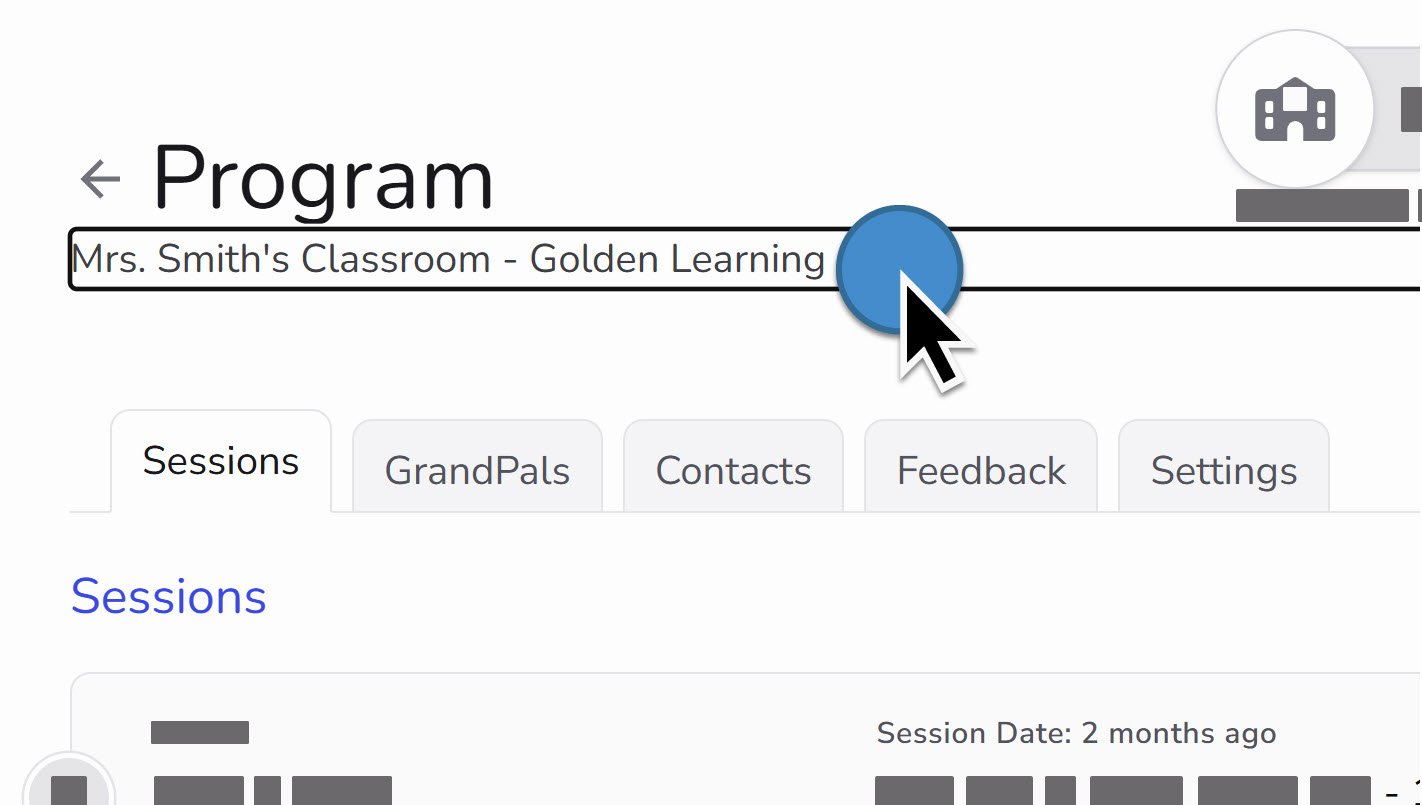
- Enter the new program name
- Changes are saved automatically
Assign Program Contacts
Program contacts receive automated communication about the programs they are assigned to. They are also visible to the participating GrandPals.- Navigate to Programs
- Select the program you want to update
- Select the Contacts tab
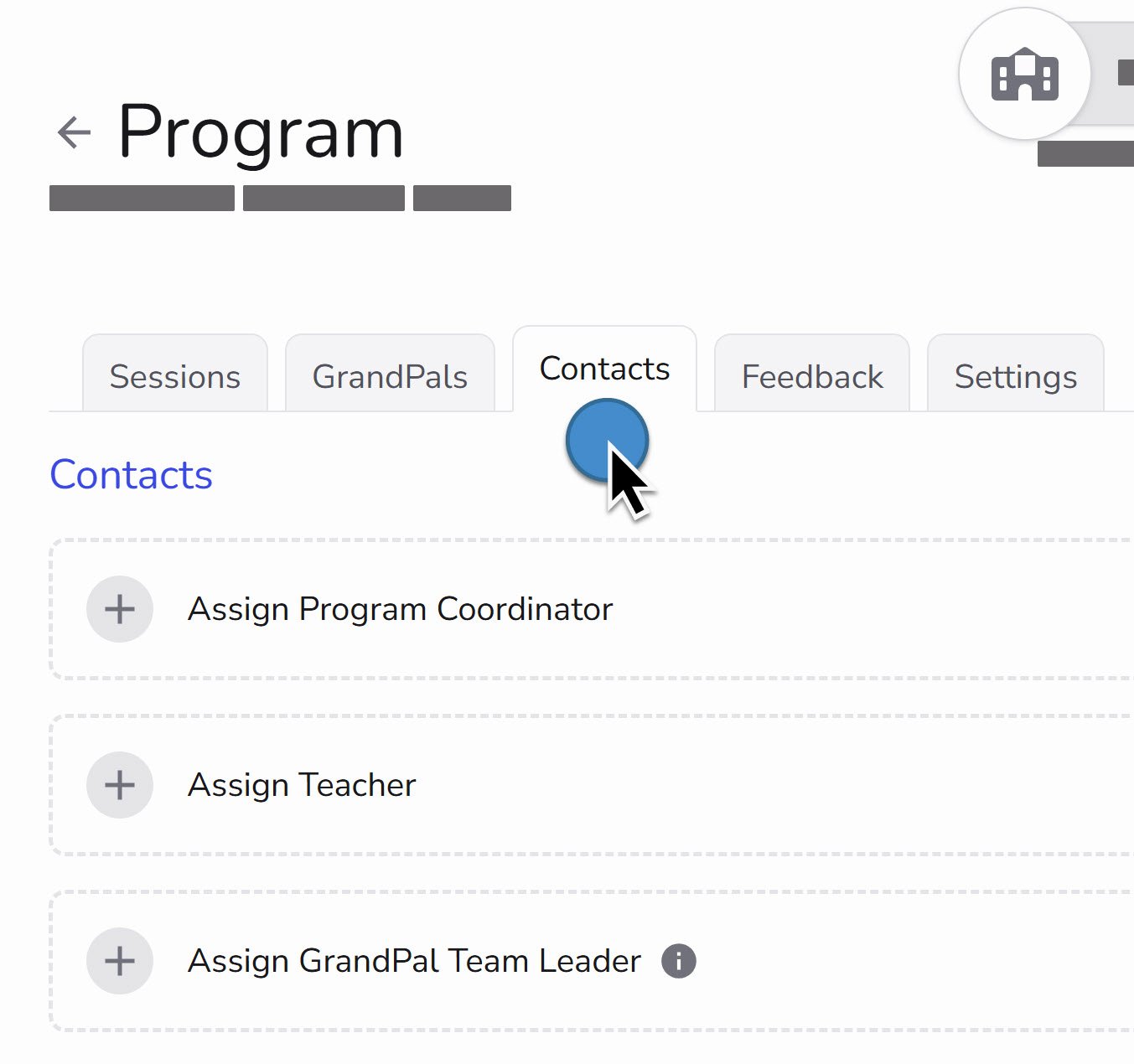
- Program Coordinator
- Teacher
- GrandPal Team Leader
Assign the Program Coordinator
Click Program Coordinator and select the person responsible for coordinating the classroom program. If the Program Coordinator does not appear in the list, they must first be added to your organization’s team:- Open Settings
- Select Team
- Select Manage your team
- Add the person as a Program Coordinator
- Return to the classroom program and assign them
Assign the Teacher
Click Teacher and select the classroom teacher. The teacher must already be listed as a contact at the school location. If the teacher does not appear:- Open Locations
- Select the school
- Open the location’s Contacts
- Add or update the teacher
- Return to the classroom program and assign them
Assign the GrandPal Team Leader
The GrandPal Team Leader provides structure and support for the GrandPals participating in the classroom program. The Team Leader normally:- Welcomes the GrandPals when they arrive
- Leads a brief reflection before students arrive
- Helps GrandPals prepare for the session theme
- Leads a short debrief afterward
- Checks how the GrandPals are doing from week to week
- Connects GrandPals with the Program Coordinator when additional support is needed
GrandPal Team Leader Resources
Open the GrandPal Team Leader GuideConfirm the Schedule with the Teacher
After the draft program has been created, assign the teacher as a program contact. When the teacher is added to the unpublished program, the platform automatically sends them an email containing the proposed program information. Keep the program unpublished while the teacher reviews the schedule and while you make any requested changes. Ask the teacher to confirm:- The Meet & Greet date
- The weekly session dates and start times
- The session durations
- The three Review and Revision sessions
- Any planned breaks
- The celebration date and duration
Publish a Program
Once the teacher has confirmed that the basic schedule is workable, publish the program so that GrandPals can be added. Review the complete schedule carefully before publishing. Make any expected changes to session dates, start times, durations, and Review and Revision sessions while the program remains unpublished. Making the schedule as accurate as possible before publishing reduces confusion and avoids sending unnecessary schedule-change notifications later.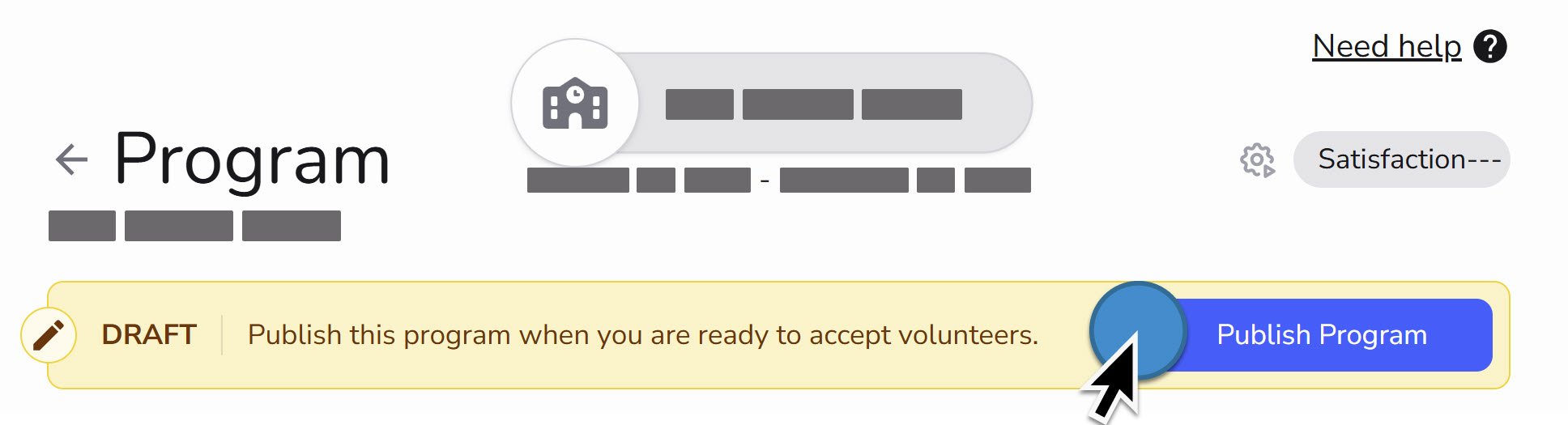
- Navigate to Programs
- Select the program you want to publish
- Click Publish Program
- Confirm that the program now appears as published
Publishing does not lock the program schedule. Session dates, start times, and durations can still be edited when circumstances change.
Adding GrandPals to a Program
Once your program is published, it is time to bring your GrandPals in. Adding GrandPals connects your volunteers directly to the classroom and sessions they will be part of. Before adding anyone, make sure each GrandPal has already been entered into the system under the GrandPals tab in the left-hand menu.How It Works
Inside each program, you will find a GrandPals tab. This is where you manage all volunteers connected with that specific program.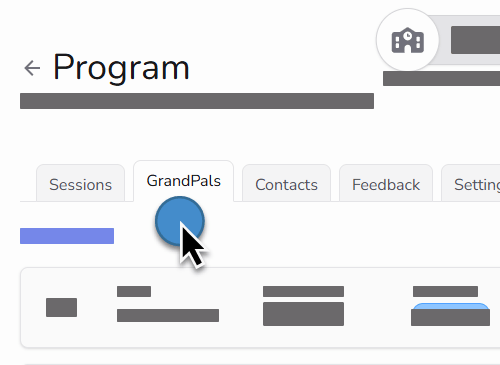
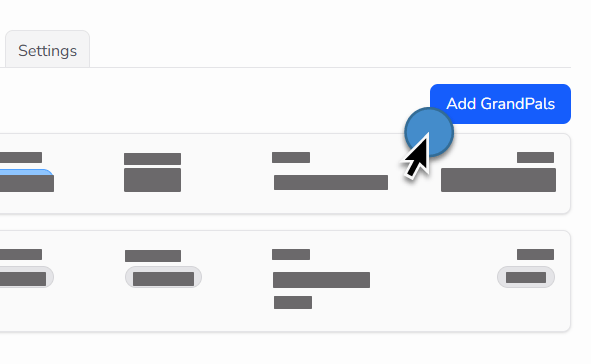
- Enrolls the GrandPal in all sessions connected with the program
- Sends the GrandPal an email confirmation containing the program dates, location, and coordinator contact information
Tips and Notes
- If you do not see a GrandPal listed, check the GrandPals tab in the main menu. They may need to be added to the system first.
- You can add as many GrandPals as needed, one at a time.
- Multi-select and search functionality are planned for a future update.
- Removing a GrandPal from a program is not yet self-service. Contact [email protected] for assistance.
Update a Published Program
Session dates, start times, and durations can still be updated after a program has been published. When a schedule change is saved, the platform automatically emails the people connected with the program so that they receive the updated information. Before making a change:- Confirm the revised date, start time, or duration with the teacher when appropriate
- Review how the change affects the remaining program schedule
- Confirm that students still have enough time to develop and complete their stories
- Confirm that the celebration remains appropriately scheduled
- Review all expected changes before saving them
Because published schedule changes generate automated emails, avoid making several small changes separately when they can be reviewed and completed together.
Delete a Program
Programs can only be deleted before their start date.
- Navigate to Programs
- Select the program you want to delete
- Click the program’s Settings tab
- Click Delete Program
- In the confirmation window, type “delete program”
- Click Delete Program to confirm