

Before You Add a GrandPal
Add someone to the platform after they have:- Agreed to proceed with GrandPals
- Confirmed their preferred first and last name
- Confirmed the email address that should receive program communications
- Understood that they will immediately receive an invitation to begin onboarding
Add a New GrandPal
- Navigate to GrandPals in the left-hand navigation
- Click New GrandPal in the top right
- Enter the GrandPal’s:
- First name
- Last name
- Email address
- Optionally:
- Add a phone number
- Select an orientation
- Select a location
- Click Add New GrandPal
The GrandPal is immediately sent an invitation email to the GrandPals Platform, where they can begin completing their onboarding steps.
What Happens Next
After the GrandPal record is created:- The invitation email is sent automatically
- The GrandPal can begin their required onboarding steps
- The sent invitation can be reviewed under Outbound Emails
- The GrandPal can be added to an orientation, when appropriate
- Their onboarding progress can be reviewed before placement
Special Email and Account Situations
GrandPals Without an Email Address
GrandPals Without an Email Address
A GrandPal who does not use email can use the email address of a:
- Family member
- Loved one
- Caregiver
- Other trusted person who can receive communications on their behalf
- Onboarding steps
- Orientation information
- Session reminders
- Follow-up messages
- Feedback requests
Adding a GrandPal With the Wrong Email Address
Adding a GrandPal With the Wrong Email Address
A GrandPal’s email address cannot be edited after the record has been created.The email address is used to connect the GrandPal with: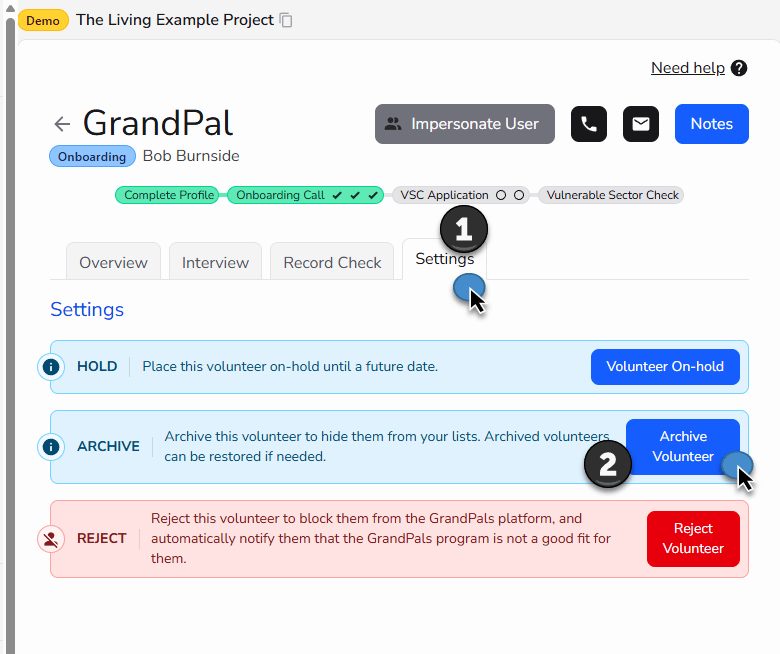
- Onboarding
- Orientation information
- Session reminders
- Notifications
- Feedback requests
- Historical records
Step 1: Archive the Incorrect Record
- Open the GrandPal record containing the incorrect email address
- Click Settings
- Select Archive Volunteer
- When prompted, type archive volunteer
- Confirm the action
Step 2: Create a New Record
- Navigate to GrandPals in the left-hand navigation
- Click New GrandPal
- Re-enter the GrandPal’s information using the correct email address
- Click Add New GrandPal
Archive the incorrect record, not the new active record created with the correct email address.
Review GrandPal Onboarding
Open an individual GrandPal record to review their onboarding progress, profile, interview, record check, and participation status.- Navigate to GrandPals
- Select the GrandPal’s name
- Review the onboarding indicators displayed across the top of the record
- Use the Overview, Interview, Record Check, and Settings tabs to review or manage the relevant information

Understand the Onboarding Indicators
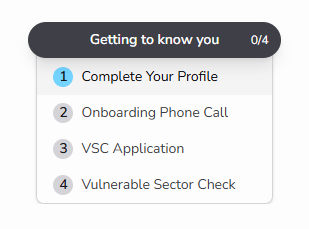
The indicators at the top of the GrandPal record show progress through four onboarding stages:Review and Update the GrandPal’s Profile
Review and Update the GrandPal’s Profile
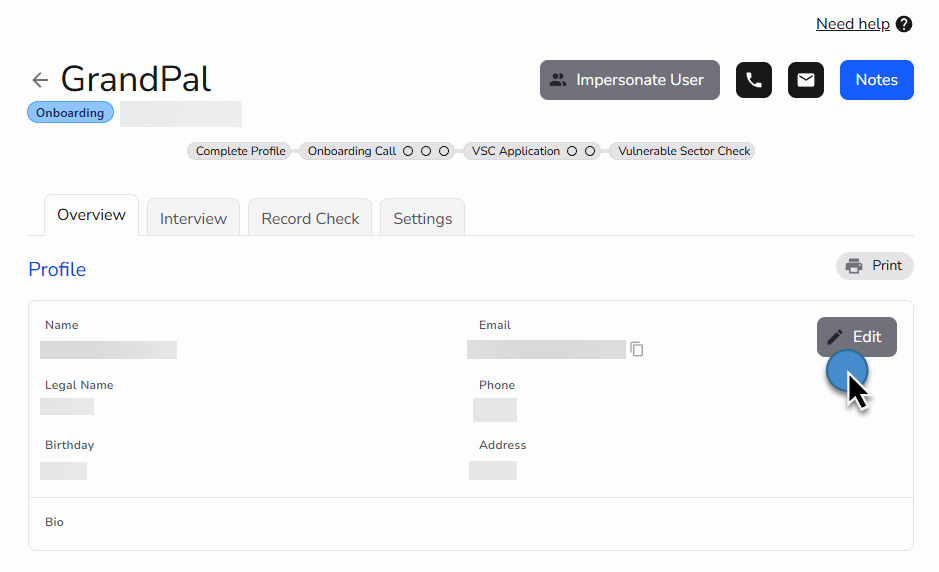
The first onboarding step asks the GrandPal to watch a short video and complete their personal profile.The GrandPal provides or confirms: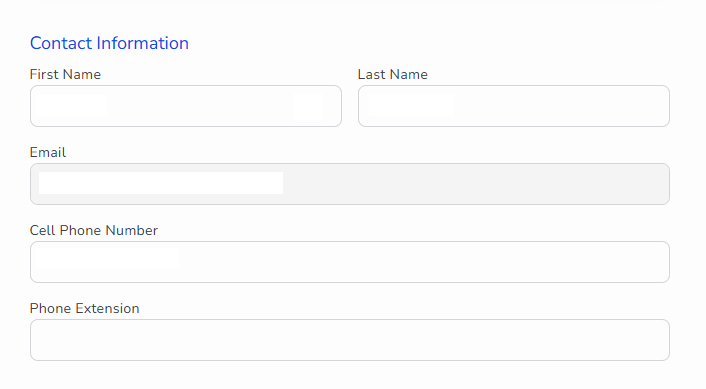
- Preferred first and last name
- Email address
- Cell phone number
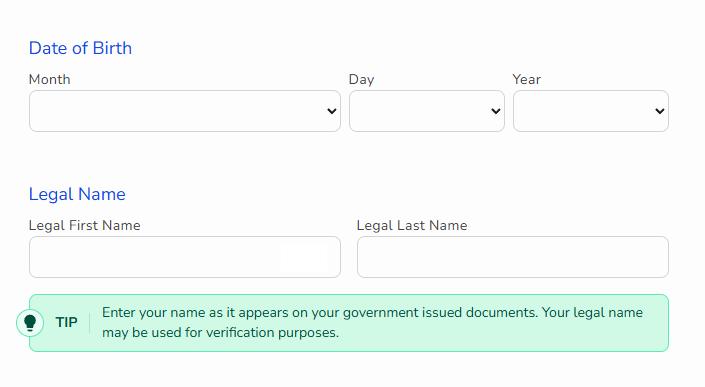
- Date of birth
- Legal first and last name
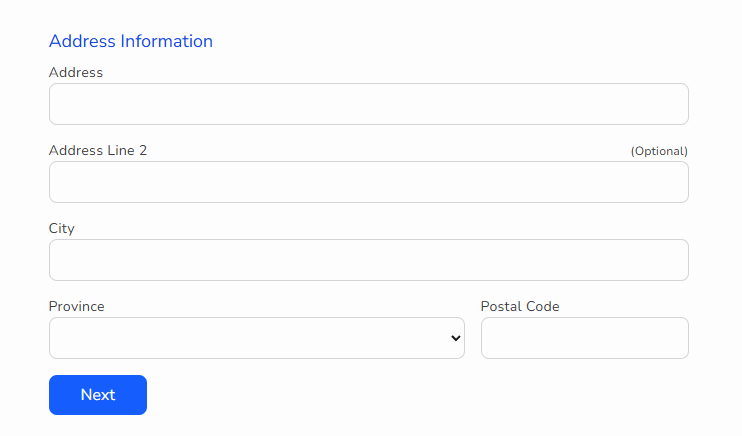
- Home address
- Open the GrandPal’s record
- Select Overview
- Review the profile information
- Click Edit when information needs to be corrected
- Update the relevant fields
- Save the changes
- Preferred name
- Legal name
- Date of birth
- Address
- Phone number
- Biography
- Other profile information
The GrandPal normally completes this information through their own onboarding account. The coordinator can correct or update it when needed.
Review or Complete the Onboarding Interview
Review or Complete the Onboarding Interview
The onboarding interview helps confirm that the program and time commitment are a suitable fit and gathers information for the GrandPal’s biography.The interview may be completed through an automated onboarding call or a coordinator-led manual interview.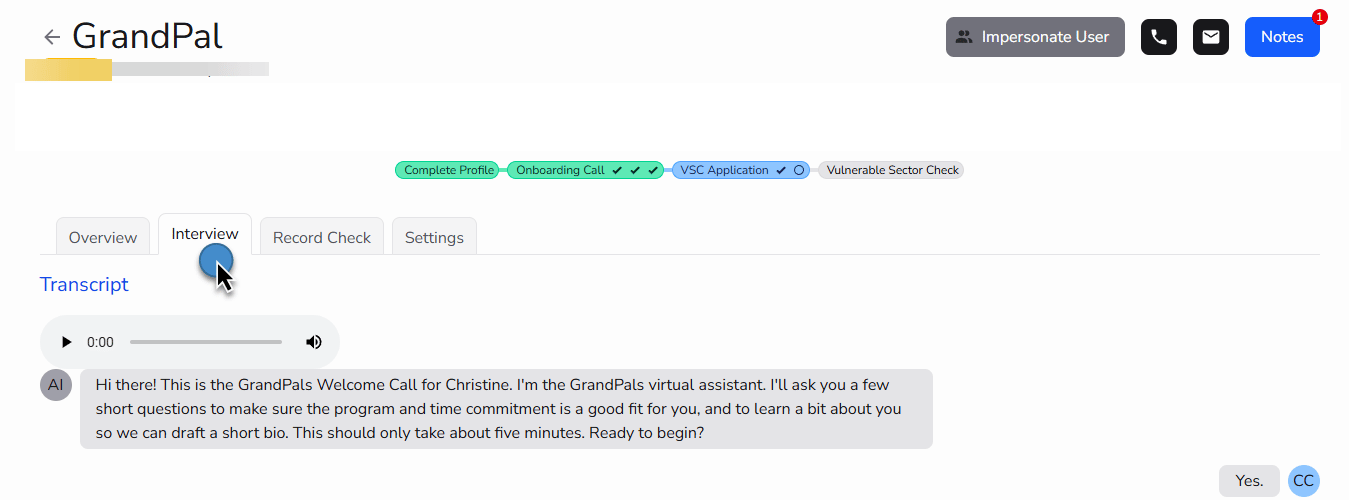
Automated Onboarding Call
When the automated onboarding call is enabled:- The GrandPal selects Please call me
- The platform conducts and records the call
- A transcript is created under the Interview tab
- A short biography is generated and added under Overview
- The Onboarding Call indicator is marked complete
- Open the GrandPal’s record
- Select Interview
- Review the transcript
- Listen to the recording when needed
- Return to Overview to review the generated biography
The Interview tab is review only. The recording and transcript cannot be edited, approved, or rejected from this page.
Manual Onboarding Interview
An organization can conduct the onboarding interview manually instead of using the automated call.First, turn off the automated onboarding phone call under the organization’s Volunteer Onboarding settings.Review the Volunteer Onboarding settingsAfter conducting the interview:- Open the GrandPal’s record
- Select Overview
- Click Edit
- Add the biography developed from the conversation
- Save the changes
- Add relevant internal follow-up information under Notes, when needed
- The Onboarding Call indicator is marked complete
- The GrandPal advances to the VSC Application stage
A manually completed interview does not create an audio recording or transcript in the Interview tab.
Support the VSC Application
Support the VSC Application
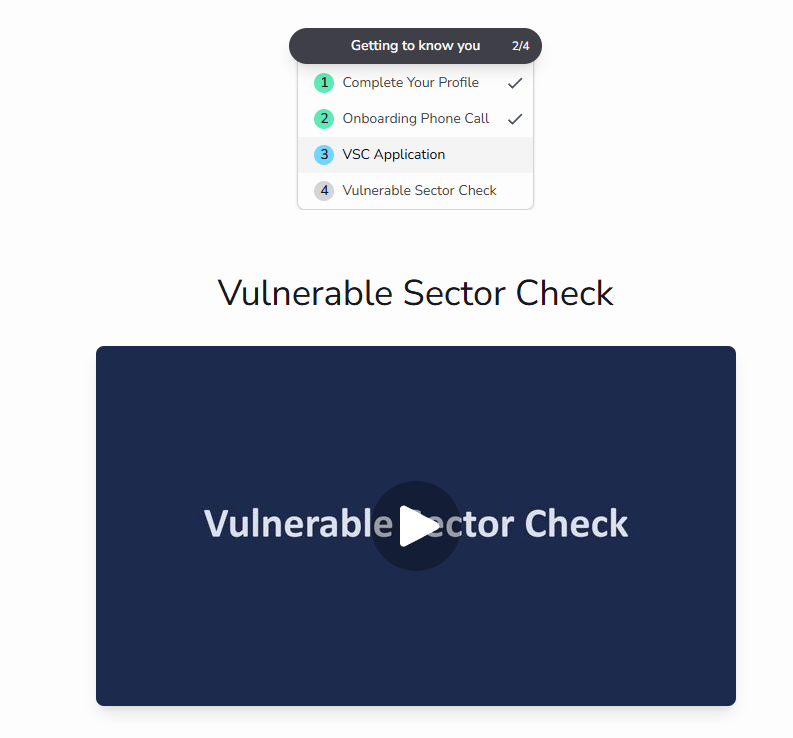
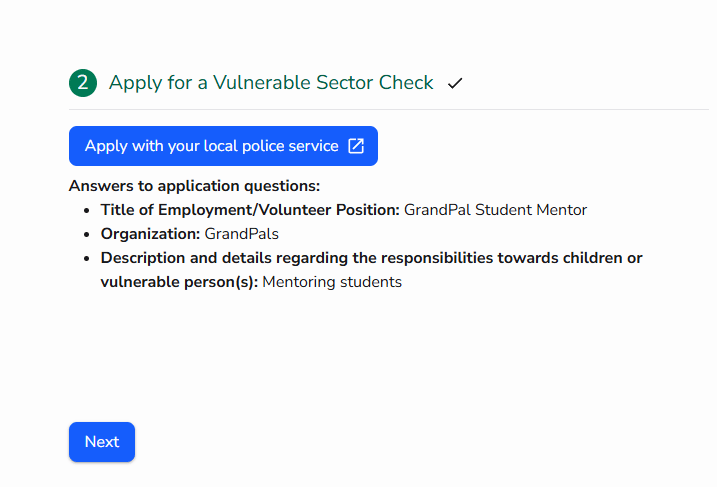
- Watch a short video explaining the Vulnerable Sector Check process
- Download and save the personalized organization letter
- Select Apply with your local police service
- Use the application information provided by the platform:
- Title of Employment/Volunteer Position: GrandPal Student Mentor
- Organization: GrandPals
- Responsibilities toward children or vulnerable persons: Mentoring students
- Complete the application through their local police service
- Return to the GrandPals Platform
- Select I have submitted my application
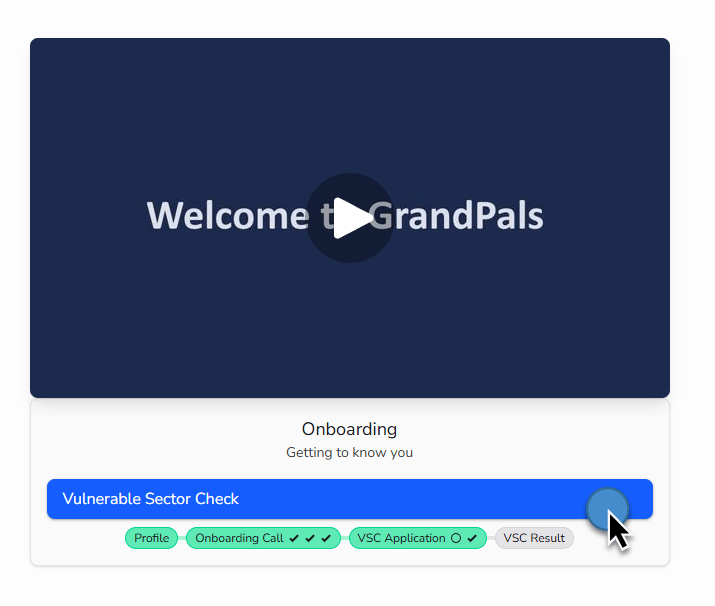
- The VSC Application indicator is marked complete
- Their onboarding advances to Vulnerable Sector Check
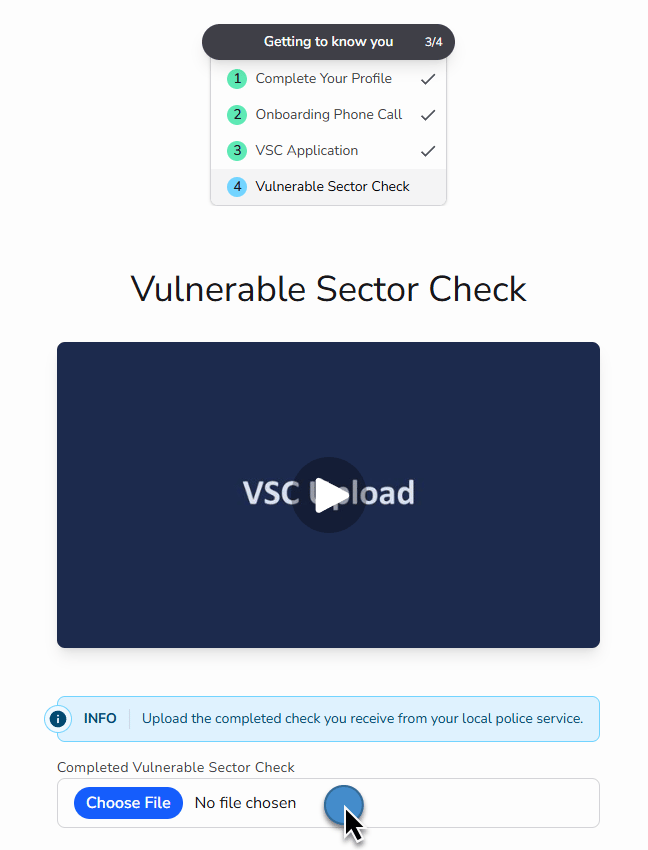
- They can upload the completed check once it is returned by the police service
The GrandPal should save the organization letter in case it is requested during the application process.
Upload a VSC on Behalf of a GrandPal
Upload a VSC on Behalf of a GrandPal
A coordinator can upload a completed Vulnerable Sector Check on behalf of a GrandPal.This may be helpful when:Follow your organization’s privacy and records-management practices for any copies received by email or stored outside the platform.
- The organization already has the completed document on file
- The GrandPal has emailed or otherwise provided the document to the coordinator
- The GrandPal needs assistance uploading it
Upload the document
- Open GrandPals from the main navigation.
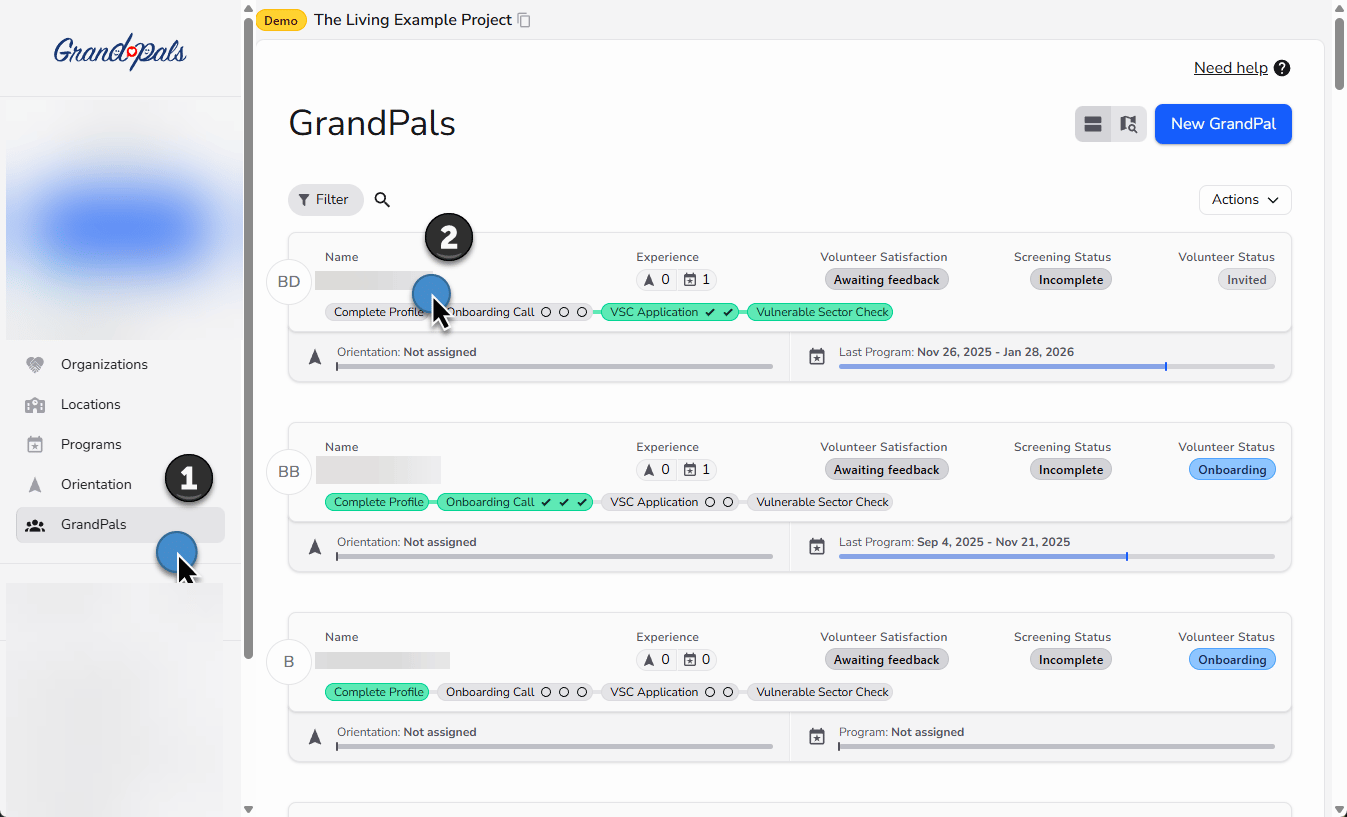
- Select the GrandPal’s name from the volunteer list.
- Open the Record Check tab.
- Click Choose File.
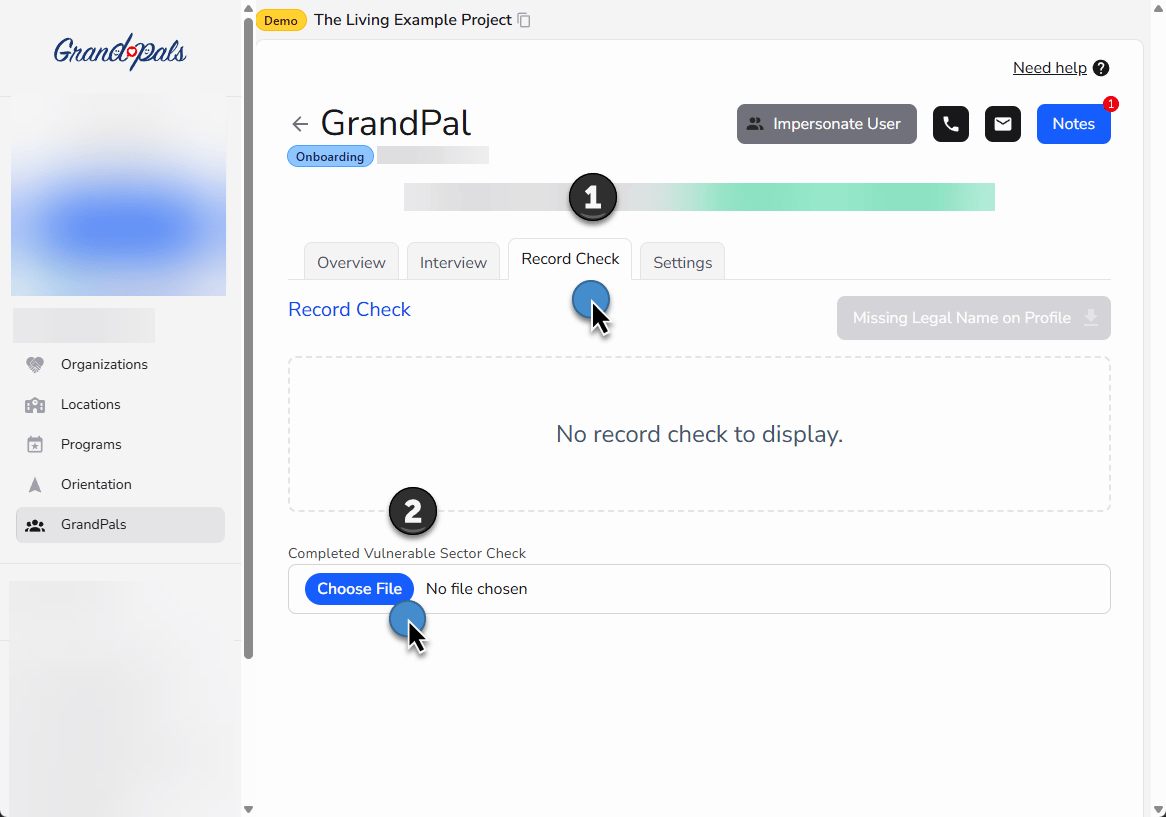
- Select the completed Vulnerable Sector Check from your device.
- Upload the document to the GrandPal’s record.
Uploading the document does not approve the Vulnerable Sector Check. A coordinator must still review the document and record the approval decision.
Upload and Review the Vulnerable Sector Check
Upload and Review the Vulnerable Sector Check
GrandPal Upload Process
After the police service returns the completed Vulnerable Sector Check, the GrandPal:- Opens the Vulnerable Sector Check stage
- Watches the short upload video
- Selects Choose File
- Chooses the completed Vulnerable Sector Check
- Reviews the uploaded document preview
- Selects Next
Upload the completed Vulnerable Sector Check received from the police service, not the application confirmation, receipt, organization letter, or another supporting document.
What Happens After the Document Is Uploaded
After the GrandPal uploads the completed Vulnerable Sector Check and selects Next:- The document becomes available for coordinator review under Record Check
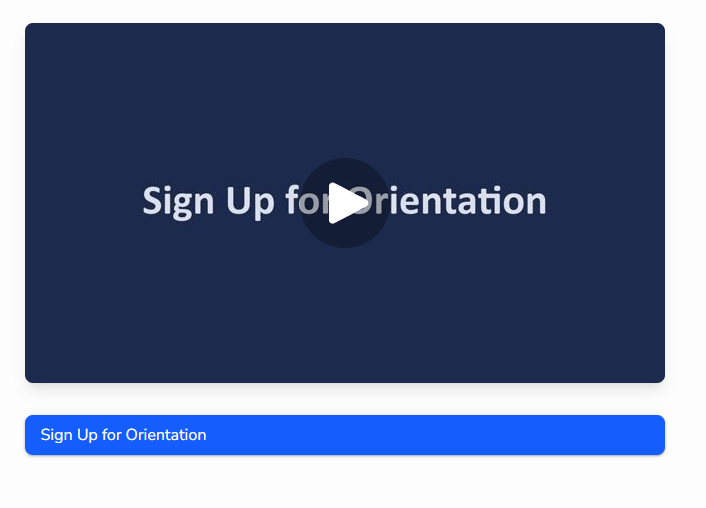
- The GrandPal advances to the Sign Up for Orientation page
- The GrandPal can register for an available orientation while the document is awaiting review
Review the Uploaded Document
Open the Record Check tab to manage the GrandPal’s Vulnerable Sector Check.Before a completed check has been uploaded, the coordinator can:- Select Download Organization Letter to download the personalized supporting letter
- Provide the letter to the GrandPal when needed
- Select Choose File to upload the completed check on the GrandPal’s behalf
- The uploaded document
- The filename
- The upload date
- The Date of Search
- The current review status
- A preview of the document
Uploading a document does not mean that the Vulnerable Sector Check has been approved. A coordinator must review the uploaded file and complete the approval or rejection action.
Approve an Uploaded Vulnerable Sector Check
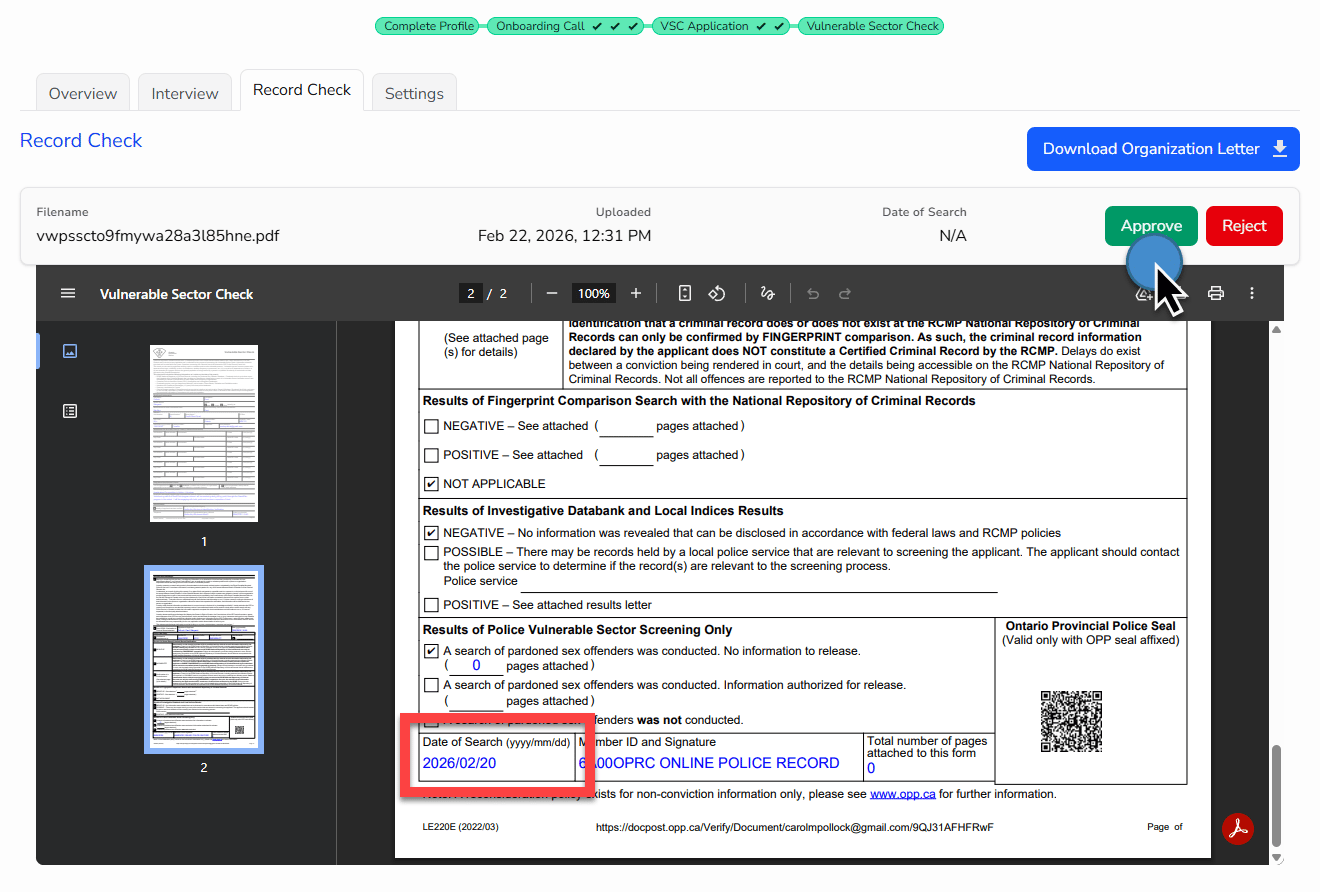
- Open the GrandPal’s Record Check tab
- Review the uploaded document
- Locate the Date of Search on the completed check
- Click Approve
- Enter the date using the format YYYY-MM-DD
- Click Approve to confirm
- The record-check status changes to Approved
- The Date of Search appears on the GrandPal’s record
- The Vulnerable Sector Check indicator is marked complete
Reject an Uploaded Vulnerable Sector Check
Reject the document when the uploaded file is not an acceptable completed Vulnerable Sector Check.- Open the GrandPal’s Record Check tab
- Review the uploaded document
- Click Reject
- Click Reject again to confirm
- Contact the GrandPal directly to explain why the document could not be accepted
- The document remains visible with a Rejected status
- The GrandPal’s Screening Status changes to Rejected on the main GrandPals page
- The platform does not automatically notify the GrandPal
- A replacement document cannot currently be uploaded through the regular workflow
Understand Screening Status
Understand Screening Status
The main GrandPals page displays each GrandPal’s Screening Status.The status changes to Complete once the completed Vulnerable Sector Check has been submitted to the platform.To confirm the result:
- Open the GrandPal’s record
- Select Record Check
- Review the uploaded document
- Confirm that its status is Approved
A GrandPal should not be considered fully cleared for classroom placement based only on the Complete status shown on the main GrandPals page.
Manage a GrandPal’s Status
Place a GrandPal On Hold
Place a GrandPal On Hold
Use Volunteer On-hold when the GrandPal is taking a temporary break or plans to participate in a later season.
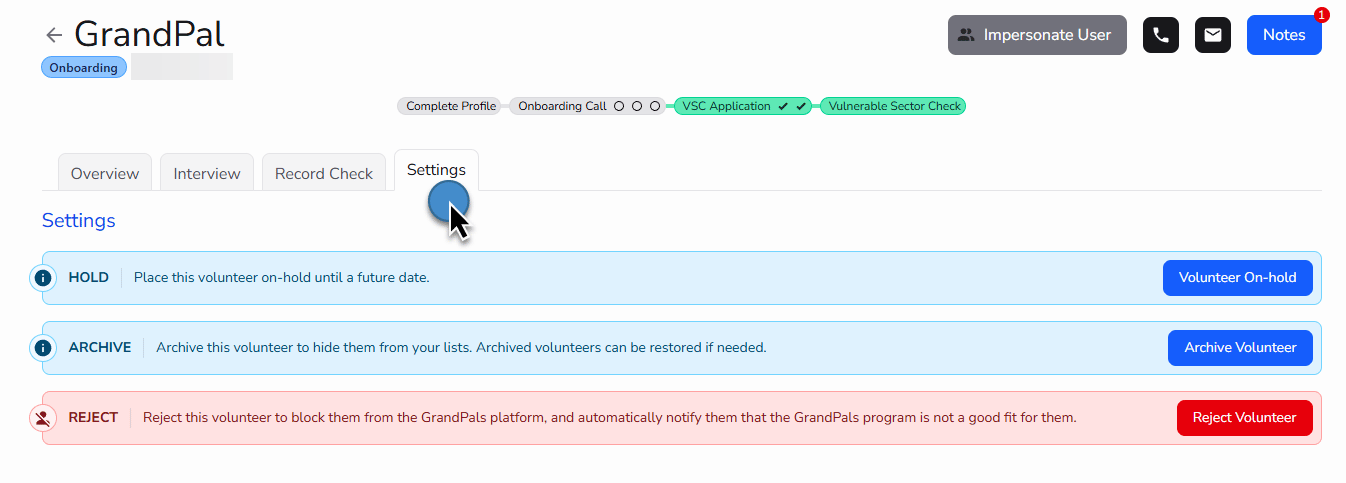
- Open the GrandPal’s record
- Select Settings
- Click Volunteer On-hold
- Enter the On-hold until date
- Type on-hold to confirm
- Click Place volunteer on-hold
- They remain part of the program
- Their record is preserved
- They do not receive automated platform communications
Archive a GrandPal
Archive a GrandPal
Use Archive Volunteer only when the GrandPal is no longer going to participate in the program.Do not archive someone who is:
- Taking a break for a season
- Temporarily unavailable
- Delaying onboarding
- Planning to return later
- Open the GrandPal’s record
- Select Settings
- Click Archive Volunteer
- Type archive volunteer to confirm
- Click Archive volunteer
- Removes them from the default active list
- Preserves their existing record and history
- Allows the archived record to be found using the filters on the main GrandPals page
Reject a GrandPal
Reject a GrandPal
Use Reject Volunteer only when the individual will not continue with the GrandPals program because the program is not considered a suitable fit.Rejecting a GrandPal: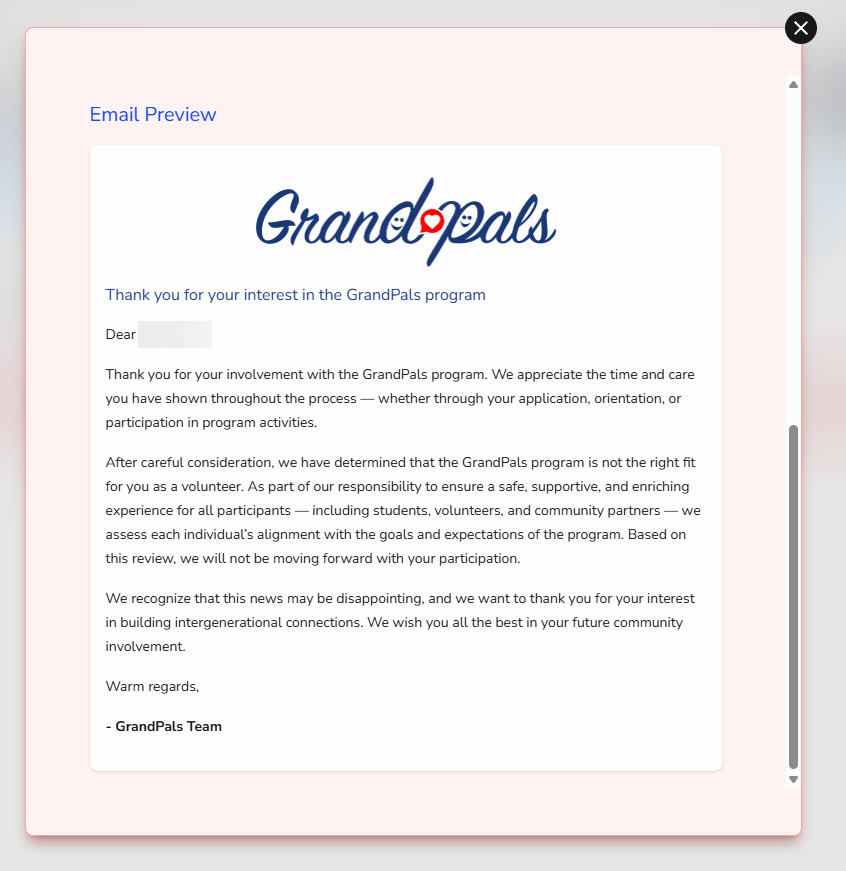
- Ends their participation
- Blocks their access to the platform
- Records an internal reason for the decision
- Can automatically send a fixed standard rejection email
- Open the GrandPal’s record
- Select Settings
- Click Reject Volunteer
- Enter the Reason for Rejection
- Choose whether to send the standard rejection message
- Review the email preview when applicable
- Type reject volunteer to confirm
- Click Reject volunteer
The internal reason is not included in the rejection email. The standard email can be reviewed but cannot be edited.
Confirm Onboarding and Screening
Before treating a GrandPal as fully cleared for classroom placement, confirm that:- The required profile information has been completed
- The onboarding interview has been completed
- A biography appears under Overview
- The VSC Application stage is complete
- The completed Vulnerable Sector Check has been uploaded
- The uploaded document has been reviewed
- The Record Check status is Approved
- Any additional local safeguarding requirements have been completed